
Capturing 3D game files for Pepakura
This tutorial is for capturing 3D game models that you can then import to Pepakura for editing and developing to produce printed templates for cosplay armour, weapons or other game elements. Note that this is only for games using the Unreal game engine.
Firstly you want to head over to, gildor and download the ue viewer software package. Once downloaded and extracted, proceed to the umodel.exe file. Once open locate the path of the game files you want to view, click ok and then begin looking for the files you want to extract. Click Export, and then if asked select the version of the unreal engine used for that game. If unsure just try and then try again until the files extract. The extracted will appear in the folder that contains the .exe file in a folder called UmodelExport.
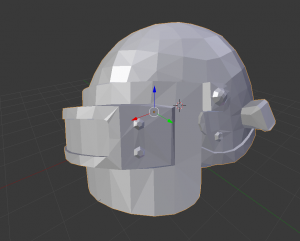
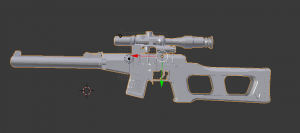
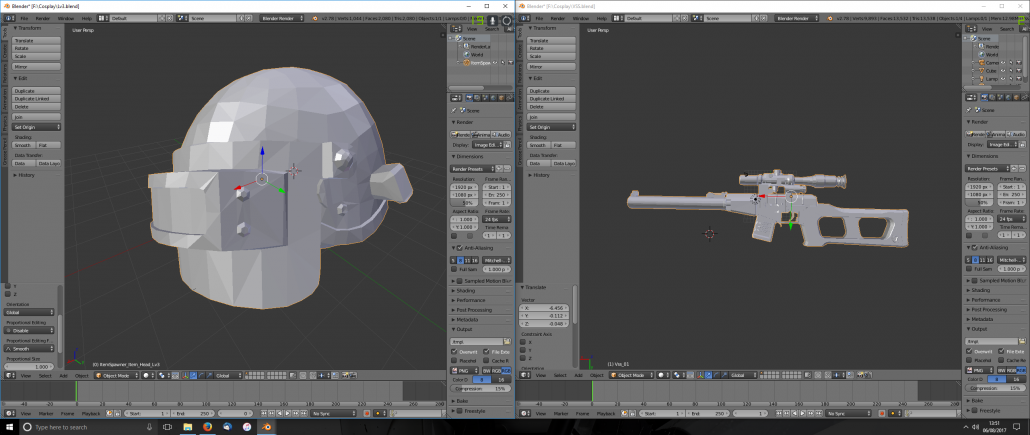
Next you will need to download a copy of Blender. Blender is a free open source software package for 3D creation. Once installed and opened up, go to file, import, and then Static Mesh .pskx files. Locate and import that file. You may then need to change the loaded file to work easier with Pepakura but that will depend on the model and how complex it is. Once you are happy with your 3D file export it as a Collada .dae file.
Lastly head over to Tamasoft, for a free download of Pepakura, you only need to purchase for designing, saving and for all the full features, but for viewing and extracting the free version is fine.
Import your .dae file and then check the scale is correct for what you need, remember to take into account the thickness of the material when doing the unfold.